Your new phone feels hot in your palm after a long match, and you start to worry. Is iPhone 18 Pro overheating during gaming a real defect, or is a strong chip simply doing its job? This guide separates normal warmth from true warning signs and shows safe ways to cool the phone.
Is iPhone 18 Pro overheating during gaming a real problem?
For most players, no. Apple says a warmer phone is expected during demanding tasks like graphics-heavy games, wireless charging, camera use and first-day setup. The heat fades once the task ends.
Apple also gives a simple rule. If no temperature warning appears, you can keep using the phone. So iPhone 18 Pro overheating during gaming usually means a warm back panel and a small speed drop, not a broken device.
A true overheating event looks different. Helpers on Apple’s support forum describe a thermometer screen, with the phone unusable until it cools. That is the line between hot and overheated.
I found no Apple recall or formal heat defect notice for this model. One case maker’s guide says the same as of October 2026, but that company sells cases, so read its advice with care.
Ask three questions. How long did the phone run hot, did a warning appear, and did it cool after you stopped? Those answers decide whether iPhone 18 Pro overheating during gaming is normal.
iPhone 18 Pro gets hot while playing games: what normal warmth feels like
Games push the processor, graphics, screen and wireless radios at the same time. That is why iPhone 18 Pro overheating during gaming worries many owners, even when the phone works as designed.
Normal warmth follows a pattern:
- The back feels warm near the camera plate after 10 to 15 minutes of a 3D game.
- The phone cools within minutes after you quit.
- Touch response stays sharp and the screen stays bright.
- No warning appears on the display.
Apple lists a safe working range of 0 to 35 degrees C (32 to 95 degrees F). A sunny balcony or a hot room can push the phone past that range without any help from the game.
Apple also names setup, restoring a backup and major updates as warm-up periods. A new or freshly updated phone can make iPhone 18 Pro overheating during gaming feel worse for a short while.
What Apple changed inside the iPhone 18 Pro to handle heat
The phone runs the 2 nm A20 Pro chip. Apple moved the memory beside the processor instead of in its heat path, so the chip now touches the vapor chamber directly.
That vapor chamber has three times the surface area of the one in the iPhone 17 Pro. Apple says the new layout gives up to 40% better sustained performance than last year’s model.
Read the wording closely. Apple talks about sustained performance, not a cooler surface. A vapor chamber spreads heat across the phone, but it does not remove it, so iPhone 18 Pro overheating during gaming can still happen.
The Mac Observer notes that Apple has not published the size, materials or test method behind its cooling figures. The outside design also matches the iPhone 17 Pro, so all of the change sits inside.
Better hardware helps, yet iPhone 18 Pro overheating during gaming still depends on your settings, your room and your habits.
iPhone 18 Pro overheating during gaming in real tests
Early tests of iPhone 18 Pro overheating during gaming give a mixed picture, and the sources do not agree on every number. Here is what reviewers reported:
- The Tech Chap measured 37.2 C on the iPhone 18 Pro Max after 10 minutes of gaming. The iPhone 17 Pro Max hit 38.7 C and the iPhone 16 Pro Max hit 42.9 C.
- HTX Studio ran a 30 minute gaming test and logged 43.8 C on the iPhone 18 Pro and 43.2 C on the Pro Max.
- Dame Tech’s long run, reported by Notebookcheck, showed Resident Evil 4 averaging 58 FPS on the 18 Pro Max against 38.6 FPS on the 17 Pro Max.
- Another test, from MrMacRight, found the new phone still throttles, but later and with up to 69% less performance loss.
The numbers differ because test length, room temperature and game choice differ. A 10 minute reading and a 30 minute reading cannot be compared fairly.
The pattern still holds across reports. iPhone 18 Pro overheating during gaming still shows up in long sessions, yet the phone keeps its frame rate better than the 17 Pro.
Photographer Tyler Stalman saw the phone overheat during hours of video in desert heat above 30 C. That was camera work, not gaming, but the limits are real.
iPhone 18 Pro temperature warning screen: what it says and what to do
Apple shows its warning screen as an image and does not print the full text, so iPhone 18 Pro overheating during gaming has no official wording to quote. During driving directions, the alert reads “Temperature: iPhone needs to cool down.”
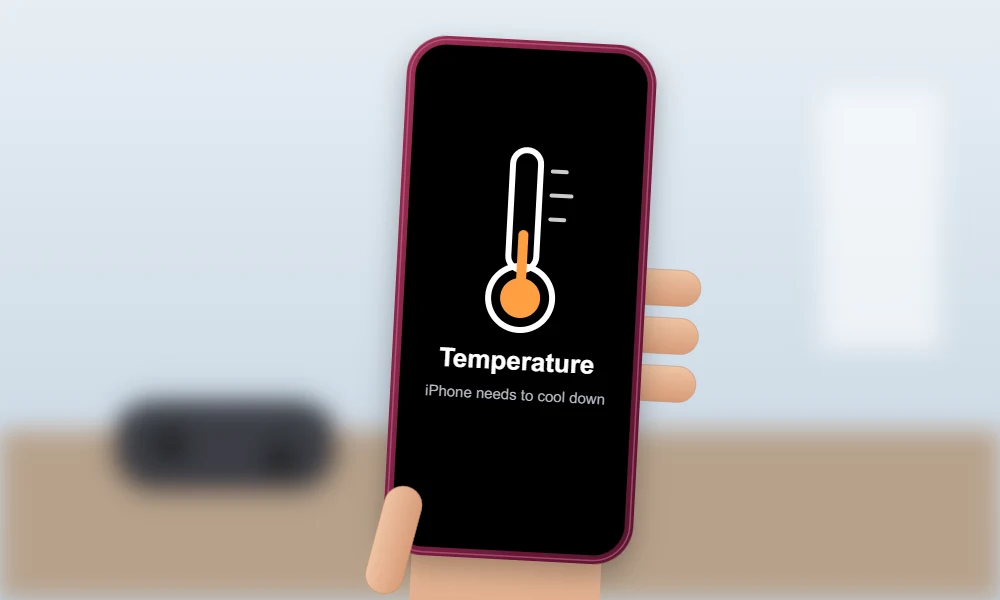
The display may switch off while spoken directions continue. While charging, a Lock Screen note says charging is on hold until the phone returns to a normal temperature.
If you see a warning during iPhone 18 Pro overheating during gaming, follow these steps:
- Stop the game and put the phone down.
- Turn it off. Hold the side button and a volume button, then slide to power off.
- Move it to a shaded, cooler spot.
- Wait until it feels normal before you wake it again.
Apple says a phone showing this screen may still place emergency calls.
iPhone 18 Pro overheating during gaming: warning signs, likely causes and fixes
Match what you see with what to do. The causes are common explanations, not confirmed findings for every case of iPhone 18 Pro overheating during gaming.
| Warning sign | Likely cause | What to do |
|---|---|---|
| Back feels warm after 15 minutes, frame rate steady | Normal processor and graphics load | Keep playing and rest every 30 to 45 minutes |
| Frame rate drops after 20 to 30 minutes | Chip slows itself to limit heat (thermal throttling) | Cap the frame rate, lower graphics, remove the case |
| Hot while charging and playing | Battery charging and the chip both add heat | Unplug, finish the session, then charge |
| Screen dims by itself | Heat protection, or auto brightness in strong light | Move to shade and set brightness by hand |
| Lock Screen says charging is on hold | Battery too warm to charge safely | Let the phone cool, then plug it in |
| Thermometer screen asking the phone to cool down | Safe temperature limit passed | Stop, turn the phone off, rest it in shade |
| Hot while idle or on light tasks | Stuck background task, app bug or battery fault | Restart, update iOS and apps, then book Apple Support if it repeats |
| Swollen screen or burning smell | Possible battery damage | Stop using and charging it, contact Apple Support at once |
iPhone 18 Pro hot while charging and gaming
Charging makes heat, and a game makes heat. Put them together and the phone warms fast. Apple notes that charging slows or stops when the phone gets too warm.
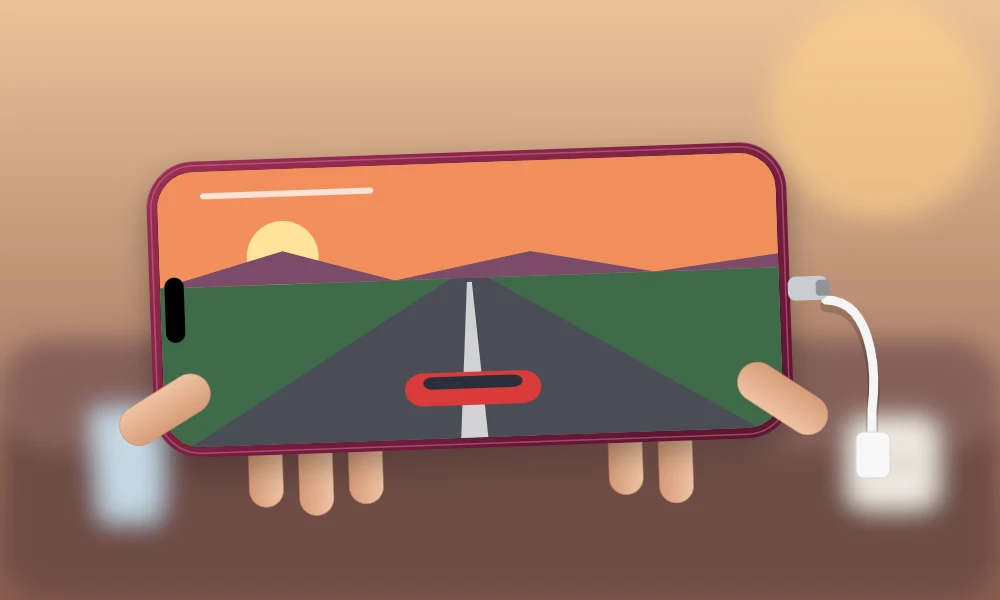
Wireless charging is also on Apple’s list of normal warm-up triggers. A charging pad covers the back of the phone, which leaves heat nowhere to go.
The safest habit for iPhone 18 Pro overheating during gaming is simple. Charge before you play or after you finish, and stop when the back feels uncomfortable to hold.
iPhone 18 Pro lag and low frame rate when hot
When the chip gets too warm, iOS cuts its speed to protect the hardware. You see this as stutter, slow touch response and a falling frame rate. Testers call this thermal throttling, and it is a common sign of iPhone 18 Pro overheating during gaming.
The numbers show why it matters. In the Dame Tech test, the 17 Pro Max fell to a 27.9 FPS low in Resident Evil 4, while the 18 Pro Max held 49.6 FPS.
No phone avoids throttling forever. If your game starts to stutter after half an hour, suspect iPhone 18 Pro overheating during gaming and try a break or lighter settings.
A sudden lag spike with a cool phone is a different problem. Check for a pending game update, low storage and a stuck app before you blame iPhone 18 Pro overheating during gaming.
Best graphics settings to keep the phone cool
Lower workload means lower heat. Option names change from game to game, but these settings usually help most against iPhone 18 Pro overheating during gaming:
- Cap the frame rate at 60, or at 30 for very long sessions.
- Lower the render resolution or resolution scale.
- Turn off ray tracing and set shadows to medium.
- Reduce anti-aliasing and switch off motion blur.
- Pick a lower graphics preset and raise it only if the phone stays comfortable.
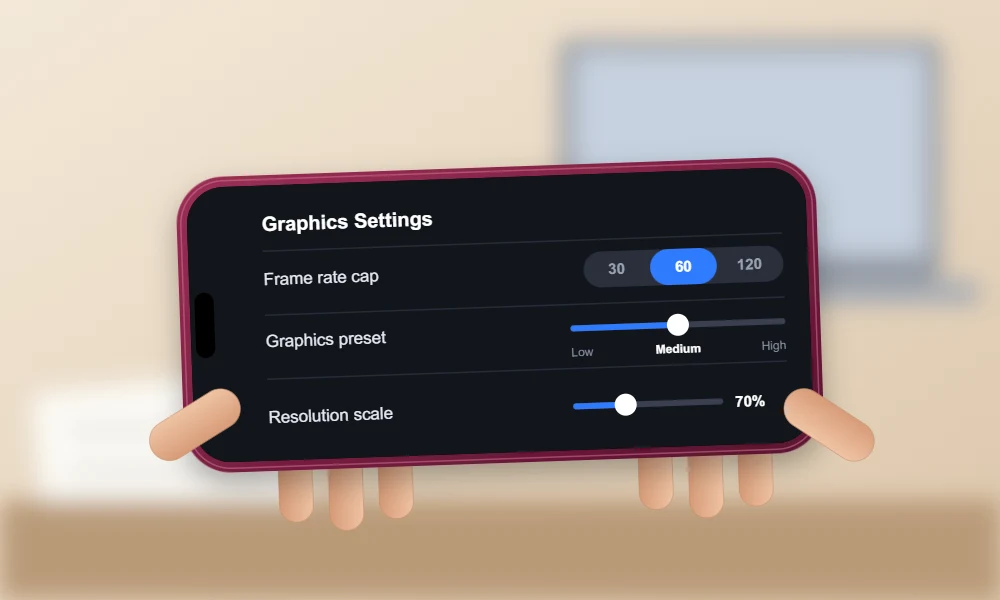
The test games show the trade. Assassin’s Creed Mirage ran at high graphics, 1320p and a 30 FPS cap, and the 18 Pro Max averaged 30 FPS.
Screen brightness matters too. Go to Settings > Display & Brightness, or open Control Center and drag the slider lower. A dimmer panel eases iPhone 18 Pro overheating during gaming over a long session.
Do Game Mode and Low Power Mode fix iPhone 18 Pro overheating during gaming?
Game Mode starts on its own when a game goes full screen. To switch it, swipe down from the top-right corner, tap Game Overlay, tap Controls, then tap Game Mode.
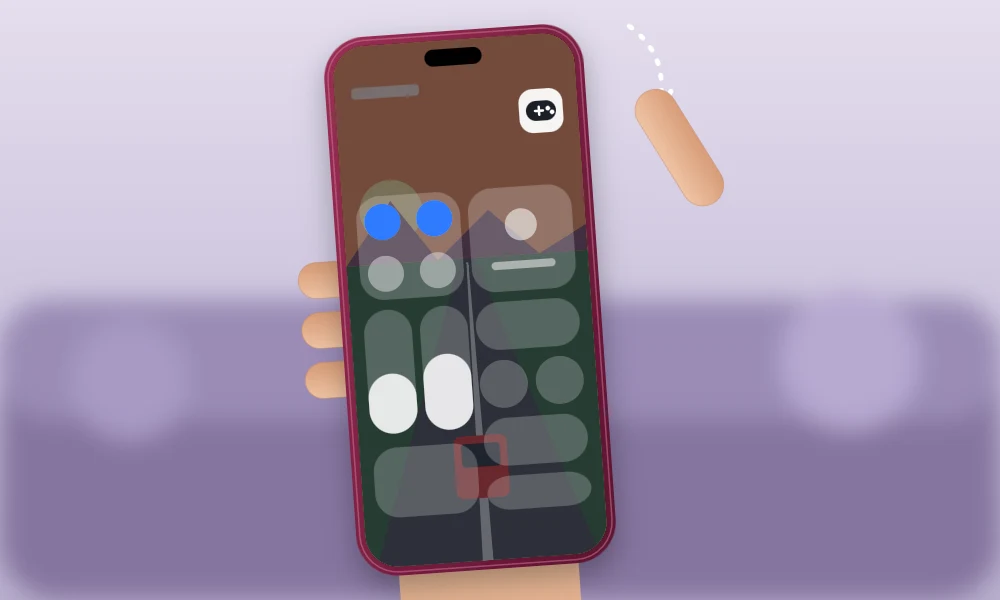
Apple says Game Mode gives the game top priority on the CPU and GPU and cuts background work. Apple’s page says nothing about heat, so do not expect it to cool the phone.
Low Power Mode lives in Settings > Battery. It limits background activity and dims the screen. Apple has not called it a cooling tool.
For iPhone 18 Pro overheating during gaming, treat both as tests. Play one session with Low Power Mode on, then compare the heat and the frame rate with your normal session.
Best cases for gaming without trapping heat
Apple’s heat guidance does not mention cases at all. Case makers say thick cases slow heat loss, but I found no lab test that proves a case causes iPhone 18 Pro overheating during gaming.
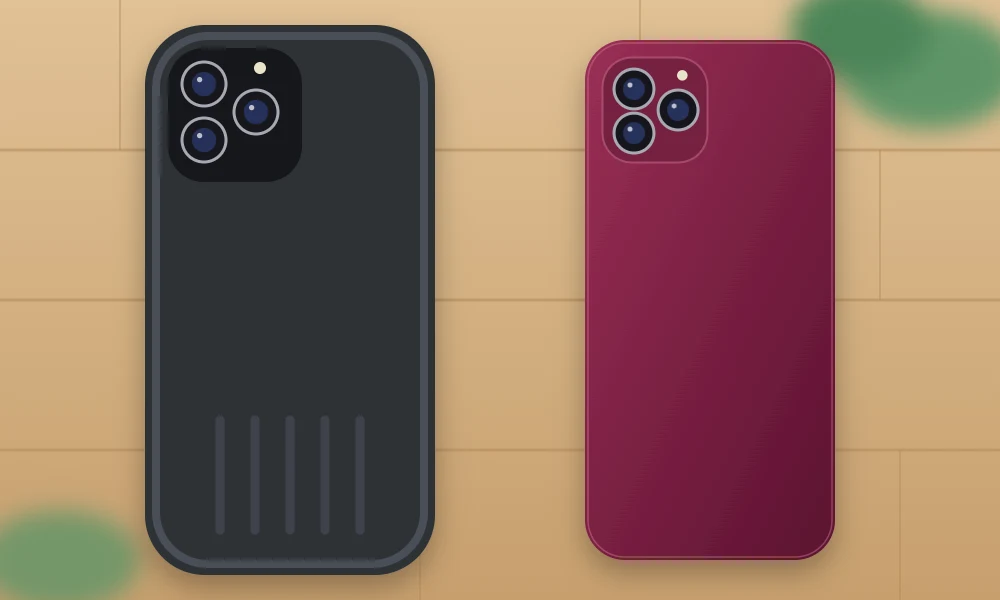
That means you should test your own phone for iPhone 18 Pro overheating during gaming. Play the same level for 20 minutes with the case on, then with the case off, and compare how warm the back feels.
Cases that tend to trap heat:
- Thick rugged cases with several layers.
- Folio and wallet cases that cover the back with leather.
- Cases with a built-in battery or a heavy metal plate.
A thin case or a bare phone suits long sessions. If a bare phone feels slippery, rest it on a soft surface.
How to cool down an iPhone safely
When iPhone 18 Pro overheating during gaming starts, work through this list in order:
- Stop playing and take a break.
- Take off the case.
- Unplug the charger and move the phone off any charging pad.
- Move out of the sun, into shade or a cooler room.
- Lower the screen brightness.
- Close background apps. Swipe up from the bottom edge, pause in the middle, then swipe apps away.
- Restart the phone if it stays warm after ten minutes.
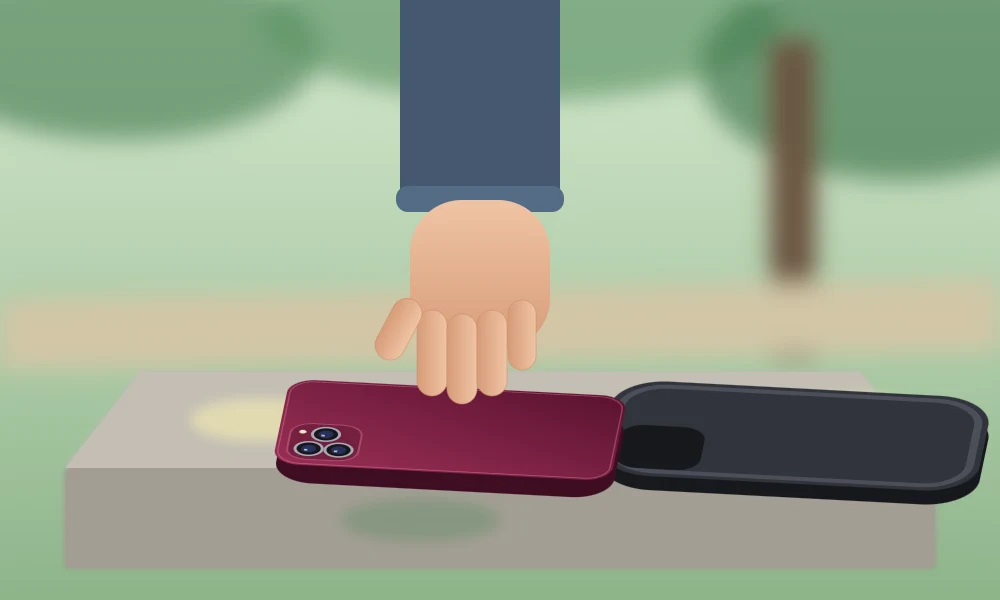
Never put a hot iPhone in a fridge or freezer. Never use ice or water on it. Sudden cold causes condensation inside the phone, and moisture can damage the board.
Skip third-party cooler and battery saver apps too. No app can lower the temperature of the hardware, and most of them only show a fake animation while using more power.
These steps work because they cut the load and give heat a way out. Each one takes under a minute, so you can try them all the next time iPhone 18 Pro overheating during gaming shows up.
iPhone 18 Pro overheating after an iOS 27 update
Apple released iOS 27 on September 14, 2026. Version 27.0.1 arrived on September 28 with fixes for Face ID restarts on the 18 Pro models, a color artifact in 2x photos and a touchscreen freeze.
iOS 27.2 followed on October 26, and iOS 27.2.1 came on November 9 with security fixes. I found no heat or thermal item in the coverage of these builds.
Apple does say a phone can show a short hit to battery life and thermal performance after a major update. Background indexing is the usual reason, and it can worsen iPhone 18 Pro overheating during gaming for a short time.
Some people on forums report extra heat after iOS 27, and one developer post claims false cool down alerts in cold rooms on an older iPhone. Apple has not confirmed either issue.
Try these steps for iPhone 18 Pro overheating during gaming after an update:
- Open Settings > General > Software Update and install the latest iOS 27 build.
- Open the App Store, tap your profile and update your games.
- Check Settings > Battery to see which app uses the most power.
- Restart the phone, then wait a day before you judge.
Skip the iOS 27.3 beta on your main phone. Beta builds can bring new bugs, and public release is expected in December.
Mistakes that make iPhone 18 Pro overheating during gaming worse
Small habits add up to big heat. Avoid these:
- Playing in direct sun, or leaving the phone in a parked car. Apple warns that parked cars can pass the safe range.
- Charging while you play.
- Running full brightness for an hour.
- Downloading a huge game update in the middle of a session.
- Keeping a thick case on during long play.
- Ignoring a warning and pushing through it.
Think of heat as a budget. Every extra task spends some of it, so cut the tasks that add to iPhone 18 Pro overheating during gaming.
When to contact Apple Support
A warm phone after a heavy game is normal, but heat during light use is not. Book help for iPhone 18 Pro overheating during gaming if you see any of these:
- The phone gets hot while idle or during simple tasks like reading messages.
- Temperature warnings keep coming in a cool room.
- The screen looks swollen or the case lifts at the edges.
- You smell something burning.
- The battery drains very fast.
- The phone shuts down from heat again and again.
When you call, say which games you play, how long the heat takes to appear and whether a warning shows. That helps the team judge whether iPhone 18 Pro overheating during gaming points to a fault.
Back up the phone first. Then use the Apple Support app or visit getsupport.apple.com, describe the heat and choose a repair option. You can also check your coverage at checkcoverage.apple.com.
If the screen is swollen or you smell burning, stop using and charging the phone right away. Do not press on the screen or try to open the phone yourself.
Final thoughts on iPhone 18 Pro overheating during gaming
The A20 Pro and the larger vapor chamber help the phone hold speed for longer. They do not make heat disappear, so iPhone 18 Pro overheating during gaming can still show up in long sessions and warm rooms.
Your best routine against iPhone 18 Pro overheating during gaming is short and easy. Update iOS and your games, drop the case for heavy play, cap the frame rate and stop charging while you play.
Warm is fine. A warning screen, heat at idle, a swollen screen or a burning smell is not fine, and those need Apple Support.
For more fixes like this, browse our iPhone errors and fixes guides.
Frequently Asked Questions (FAQs)
Question . Is iPhone 18 Pro overheating during gaming normal? Answer : A warm phone is normal. Apple lists graphics-heavy games as a usual warm-up trigger, and the heat fades once you stop. It is not normal if a temperature warning appears, the phone stays hot while idle, or the screen looks swollen.
Question . Why does my iPhone 18 Pro get hot after only 15 minutes of gaming? Answer : Games use the chip, screen and radios together, so heat builds fast. A hot room, a thick case, charging, or a fresh setup or update makes it worse. That mix explains most cases of iPhone 18 Pro overheating during gaming.
Question . Can iPhone 18 Pro overheating during gaming damage the phone? Answer : Short warm sessions fall within what Apple expects. Apple does tell you to use the phone between 0 and 35 degrees C and to keep it out of parked cars. Repeated heat above that range, or heat at idle, deserves a check at Apple Support.
Question . Does the vapor chamber stop iPhone 18 Pro overheating during gaming completely? Answer : No. Apple says the larger chamber gives up to 40% better sustained performance than the iPhone 17 Pro, but tests still show warm temperatures and some throttling in long sessions. The phone holds its frame rate longer, it does not stay cool.
Question . Should I take off the case when I see iPhone 18 Pro overheating during gaming? Answer : It is a safe test. Apple gives no case advice and I found no lab proof, but a thin case or a bare phone lets heat leave more easily. Play the same level with and without the case, then compare how warm the back feels.
Question . Is it safe to charge while iPhone 18 Pro overheating during gaming is happening? Answer : No. Stop playing and unplug the charger. Apple says charging slows or pauses when the phone is too warm, and charging adds heat of its own. Charge the phone after it cools down.
Question . Will an update fix iPhone 18 Pro overheating during gaming? Answer : Not confirmed. I found no heat or thermal fix in coverage of iOS 27.0.1 or iOS 27.2.1. Still, install the latest update and refresh your games, because bugs and old app builds can raise heat.
Question . Can a fridge or a cooling app cool a hot iPhone 18 Pro? Answer : No. A fridge, freezer, ice or water can cause condensation and moisture damage inside the phone. Cooling apps cannot change hardware temperature. Turn the phone off and rest it in a cool, shaded spot, because neither trick helps with iPhone 18 Pro overheating during gaming.