An iPhone 18 Pro battery draining fast is frustrating on a brand-new flagship, especially when the percentage seems to fall quicker than it should. Apple rates the phone for up to 24 hours of typical use and up to 36 hours of video playback in its own tests (see the iPhone 18 Pro tech specs), so a phone that is nearly empty by mid-afternoon feels wrong.
Sometimes it is wrong. Other times the drain is a short-lived side effect of setting up a new phone, installing an iOS update, or spending a day on maps, camera, and hotspot. This guide helps you tell the difference when you see an iPhone 18 Pro battery draining fast. You will learn the most common causes, 12 fixes with exact Settings paths, what to do about overnight and post-update drain, and when a battery or a phone needs a professional look.
One note before we start. Apple’s battery figures come from lab tests on preproduction units with a defined usage profile, so real life will vary. No single fix works for every iPhone 18 Pro battery draining fast case, and none of these steps is guaranteed to solve your problem. Work through them in order, give each change a day or two, and you will usually narrow down the cause.
Table of Contents
Why Is My iPhone 18 Pro Battery Draining So Fast?
An iPhone 18 Pro battery draining fast rarely has one cause. It is usually a stack of small things: a bright screen, an app refreshing in the background, a weak signal, and a phone that has been warm all afternoon. Here are the most common culprits, roughly in the order worth checking.
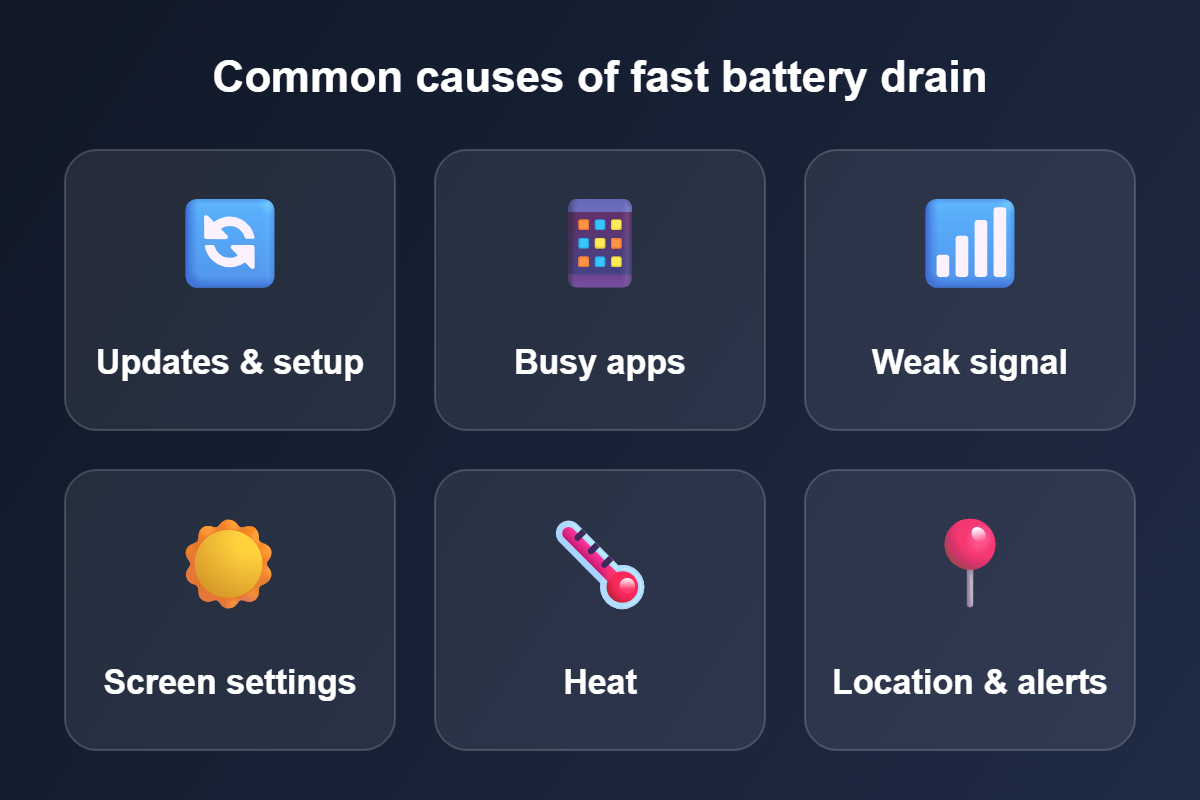
- New-phone setup or a recent update. Apple says some update and setup tasks keep running in the background after you can already use the phone. The Battery screen may show an Ongoing iOS Update or Ongoing Device Setup Insight, and battery life usually returns to normal when the work finishes.
- One busy app. Social, navigation, and messaging apps can use a surprising share of your day by refreshing or checking location in the background.
- Weak or unstable signal. When the phone struggles to hold a connection, the cellular radio works harder. Apple lists low signal as its own battery usage category for this reason.
- Screen settings. High brightness, a long Auto-Lock time, the 120Hz ProMotion display, and Always-On Display all keep the screen working. Apple does not publish how much battery each one uses, so you have to test them yourself.
- Heat. Gaming, charging in direct sun, and long camera sessions warm the phone, and a warm phone is rarely an efficient one. If heat is your main complaint, read our guide to iPhone 18 Pro overheating during gaming.
- Location, notifications, widgets, and Live Activities. Each one wakes the phone or refreshes data. Alone they are small. Together they add up.
- New iOS 27 features. iOS 27 brings Siri AI and wider Apple Intelligence features. Apple has not published a battery figure for them, so treat them as something to test, not a proven cause.
- An aging or faulty battery. This is less likely on a new phone, but not impossible. We cover it near the end of this guide.
What Apple confirms and what is general advice. Apple’s support article on an iPhone battery that drains too quickly backs most of the steps below. Tips like trimming widgets or restarting are general troubleshooting practice, and we label them as such.
12 Ways to Fix iPhone 18 Pro Battery Draining Fast
If you have an iPhone 18 Pro battery draining fast, go in order. Each fix lists where to find it, what it does, and what you give up. Change one or two things at a time and wait a day, so you know what actually helped.
1. Check Which Apps Are Using the Most Battery
Start with data, not guesses. Open Settings > Battery. Apple shows a Daily Usage chart that compares today with the past seven days, and it lists your top three battery-using apps under App and System Activity Usage. Tap View All Battery Usage, then tap a day’s bar for the full list.
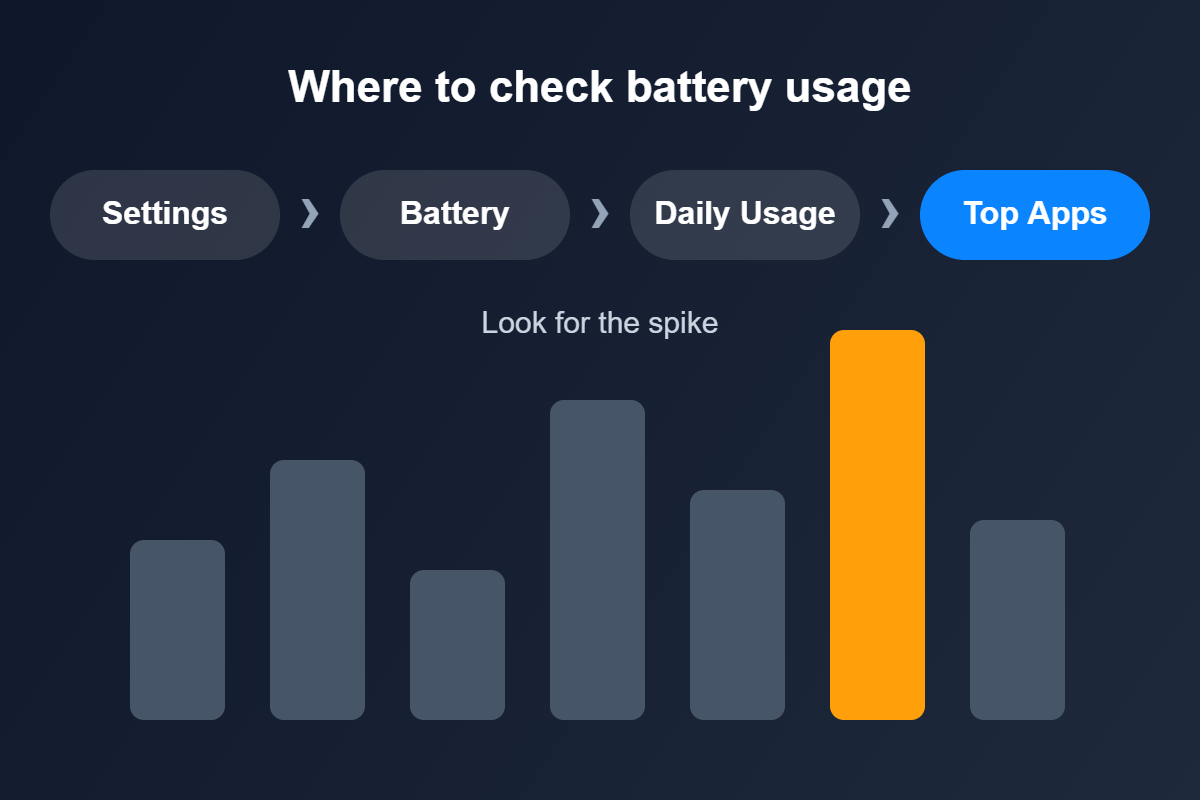
Tap an app to see why it ran. Apple’s labels include Background Activity, Low Signal, and Notifications, and each points to a different fix. High screen time is not a problem by itself: a navigation app will top the chart on a road-trip day simply because you used it. Look for apps with a lot of background activity and little time on screen. Suggestions and Insights just above Daily Usage can help too. This check usually shows whether an iPhone 18 Pro battery draining fast is an app problem or a settings problem.
2. Turn Off Unnecessary Background App Refresh
Background App Refresh lets apps check for new content while you are not using them. Go to Settings > General > Background App Refresh. You can set it to Off, Wi-Fi, or Wi-Fi & Cellular Data, or switch individual apps off in the list below.
Chatty apps are a common reason for an iPhone 18 Pro battery draining fast, so start with apps that do not need fresh data when closed, such as games, shopping apps, and rarely used utilities. The trade-off is that those apps may take a moment to load new content when you open them. Keep it on for apps where timing matters, like messaging or navigation. You do not need to swipe apps away in the app switcher either. Apple notes that a force-quit app may not check for new content until you reopen it.
3. Adjust Screen Brightness and Auto-Lock
The screen is one of the biggest power draws on any phone, so a bright display often plays a part in an iPhone 18 Pro battery draining fast. Swipe down from the top-right corner to open Control Center and drag the brightness slider, or go to Settings > Display & Brightness. Turn on Auto-Brightness under Settings > Accessibility > Display & Text Size so the phone adjusts to the light around you.
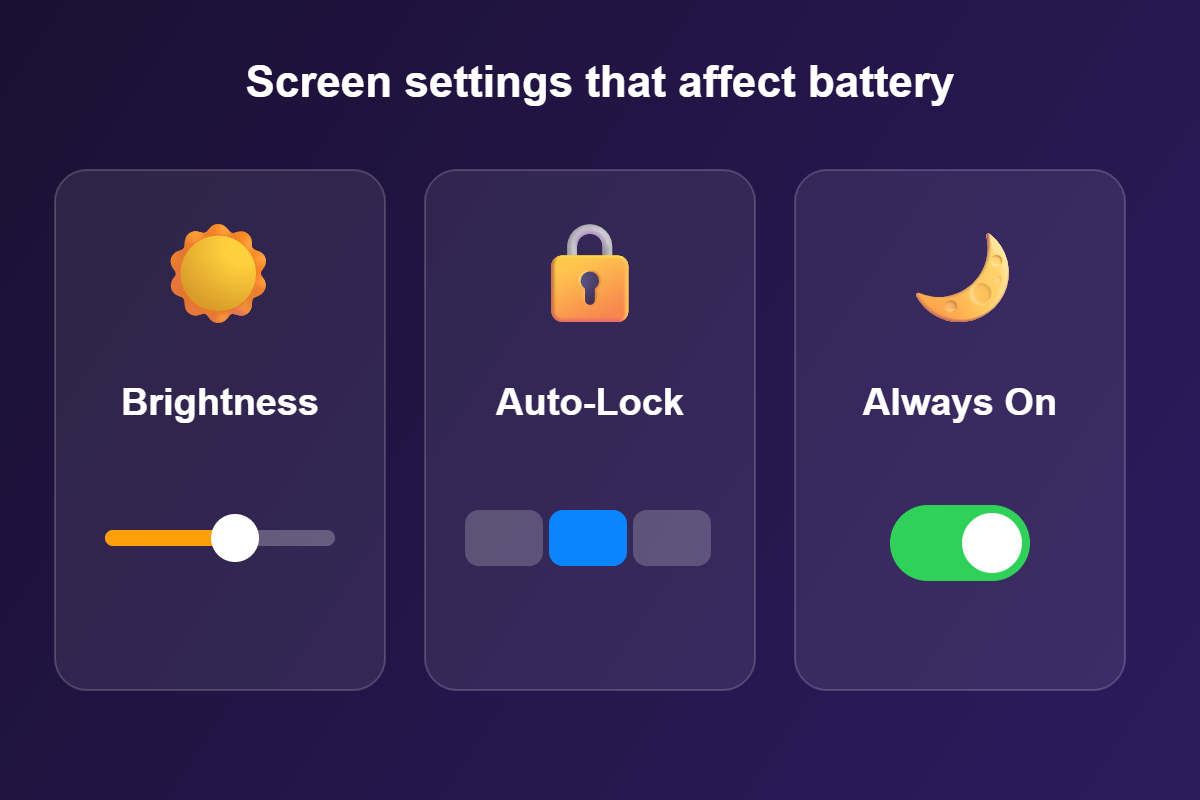
Then shorten Auto-Lock, found under Settings > Display & Brightness > Auto-Lock, so the screen is not lit while the phone sits on a desk. The downside is that the screen may dim sooner while you read.
4. Check Location Services
Many apps ask for your location, and some keep asking in the background. Constant location checks are another way an iPhone 18 Pro battery draining fast can start. Open Settings > Privacy & Security > Location Services and tap an app. You can choose Never, Ask Next Time Or When I Share, While Using the App, or Always. While Using the App is the right choice for most apps. Save Always for the few that truly need it, like a fitness tracker or a device-finding tool. Turning off Precise Location for apps that only need your general area, such as weather or shopping apps, also helps.
Change one app at a time: navigation and weather alerts may stop working if you set them to Never.
5. Disable Unnecessary Notifications
Every notification can light up the screen, play a sound, or vibrate the phone, and too many alerts can contribute to an iPhone 18 Pro battery draining fast. Go to Settings > Notifications, tap a chatty app, and turn off Allow Notifications, or keep the alerts but remove the Lock Screen banner. You can also batch non-urgent alerts into a daily digest with Settings > Notifications > Scheduled Summary. The trade-off is that you may miss something time-sensitive, so keep alerts on for calls, messages, and banking.
6. Update to the Latest Compatible iOS Version
The iPhone 18 Pro launched with iOS 27, and Apple keeps releasing point updates that may matter if you have an iPhone 18 Pro battery draining fast. Check Settings > General > Software Update. Apple’s iOS 27 updates page lists each release and what it changes, and it reminds users that software updates add features that can affect performance and battery life.
An update will not necessarily cure battery drain, and the first few days can look worse (more below). Update your apps too.
7. Check for Poor Cellular Network Signals
Poor signal is a classic cause of an iPhone 18 Pro battery draining fast. A phone in a basement, an elevator, or a rural dead zone keeps searching for a signal, and that costs battery. Apple’s advice is to move to a stronger signal, use Wi-Fi when you can, and turn on Airplane Mode if you will be without coverage for a while. You can pick a network under Settings > Wi-Fi.
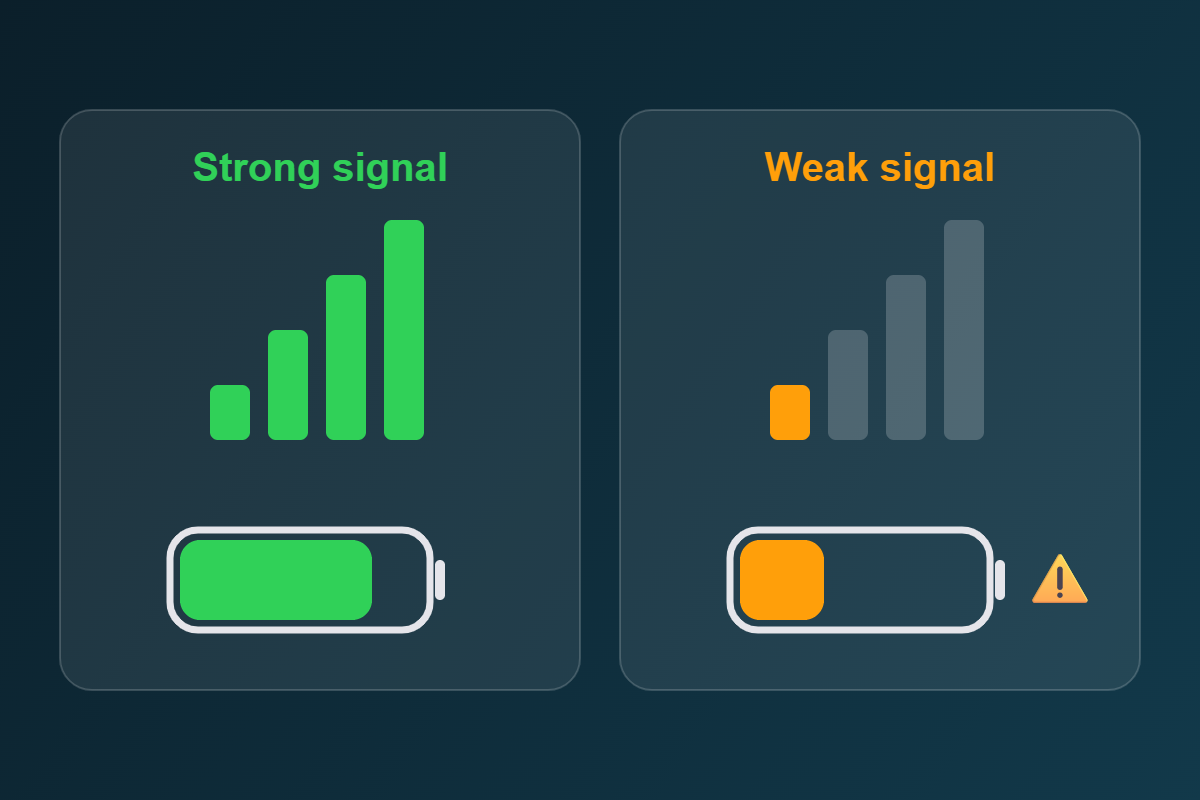
You can also try 5G Auto at Settings > Cellular > Cellular Data Options > Voice & Data > 5G Auto. The iOS description says it uses 5G only when that will not significantly reduce battery life.
8. Review Always-On Display Settings
The iPhone 18 Pro has an Always-On display, which keeps a dimmed Lock Screen visible. Apple does not say how much battery it uses, but it keeps the screen active, so it is worth testing when you have an iPhone 18 Pro battery draining fast. Go to Settings > Display & Brightness > Always On Display and switch it off. With it off, the screen turns off when you lock the phone.
If you like the glanceable clock, keep it on and hide the wallpaper or notifications in the customize options. The trade-off: without it you lose the at-a-glance time.
9. Turn Off Unnecessary Widgets and Live Activities
Widgets can add to an iPhone 18 Pro battery draining fast because they refresh their data, and Live Activities such as sports scores, delivery tracking, and timers update on your Lock Screen and Dynamic Island. Touch and hold a widget you rarely read, then choose Remove Widget. For Live Activities, open Settings, tap the app, and look for a Live Activities switch. Not every app has one.
This is general advice, not a published Apple figure, and the effect is usually modest. Keep the ones you actually use.
10. Check Battery Health and Usage Information
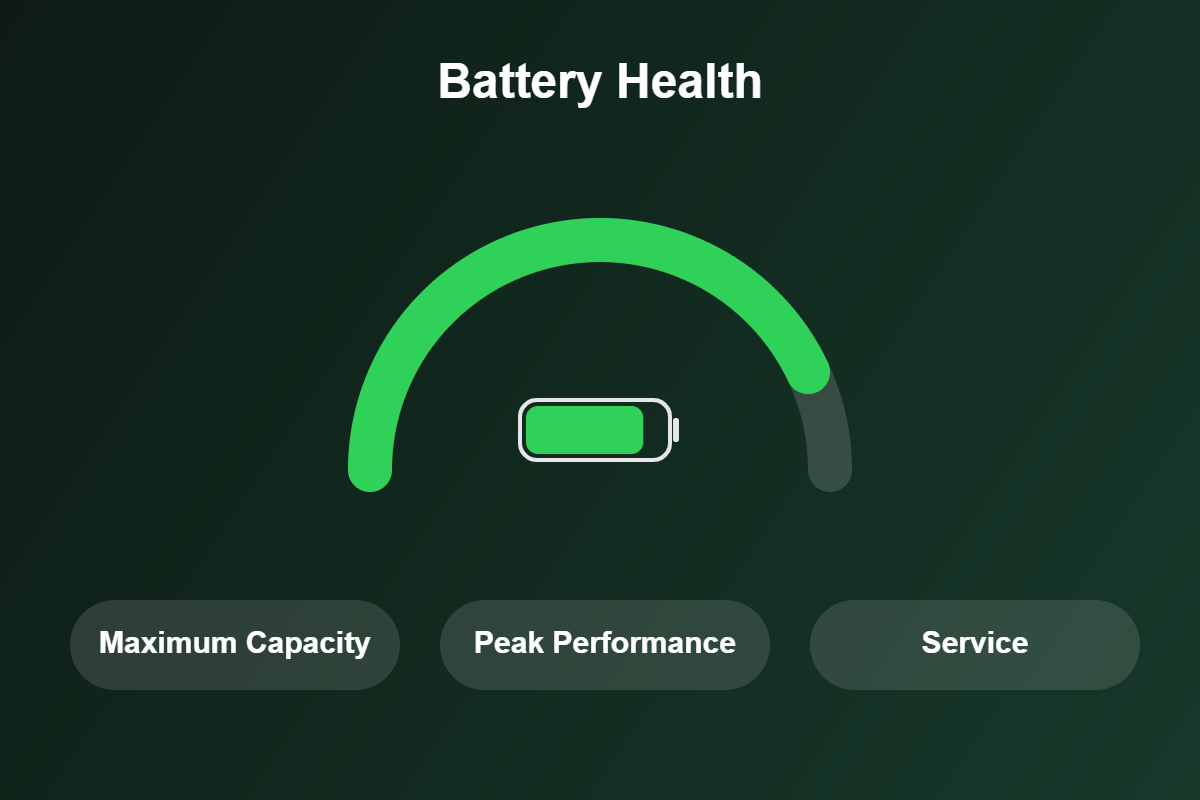
Go to Settings > Battery > Battery Health. On iPhone 15 and later, Apple shows the battery’s maximum capacity, its peak performance capability, and whether it needs service. A phone this new should show close to full capacity, and the number helps you judge whether an iPhone 18 Pro battery draining fast is a software issue or a hardware one. If you see a Service message, or a number far lower than you would expect for a phone that is only months old, contact Apple.
While you are in the Battery screen, look at the power options. Low Power Mode (Settings > Battery > Power Mode) reduces or turns off features such as Mail fetch, Hey Siri, Background App Refresh, and some visual effects, and it switches off automatically once the phone charges past 80 percent. With iOS 26 and later, Adaptive Power can predict heavy-use days and adjust performance for you, and it can turn on Low Power Mode when the battery reaches 20 percent. Apple’s iPhone battery guide also covers Optimized Battery Charging and a charge limit option.
11. Restart Your iPhone
A restart is the simplest fix on the list for an iPhone 18 Pro battery draining fast. Press and hold the side button and either volume button until the power-off slider appears, drag it, wait about 30 seconds, then hold the side button to turn the phone back on. You can also use Settings > General > Shut Down.
This is general troubleshooting, not a guaranteed cure. It clears temporary glitches but will not fix a failing battery.
12. Reset Settings or Contact Apple Support
If the drain continues after the steps above, try Reset All Settings at Settings > General > Transfer or Reset iPhone > Reset > Reset All Settings. This keeps your apps and data, but it returns system settings such as Wi-Fi passwords, wallpaper, and privacy choices to their defaults, so you will set those up again. Back up your phone first as a precaution. A full factory reset is rarely needed for battery drain, and we would not start there.
If an iPhone 18 Pro battery draining fast persists, or the phone gets hot, shuts down unexpectedly, or shows a Service message, contact Apple. Use the Apple Support app or getsupport.apple.com to arrange a diagnostic. Persistent drain can come from hardware, and no software tweak will fix that.
Why Is My iPhone 18 Pro Battery Draining Overnight?
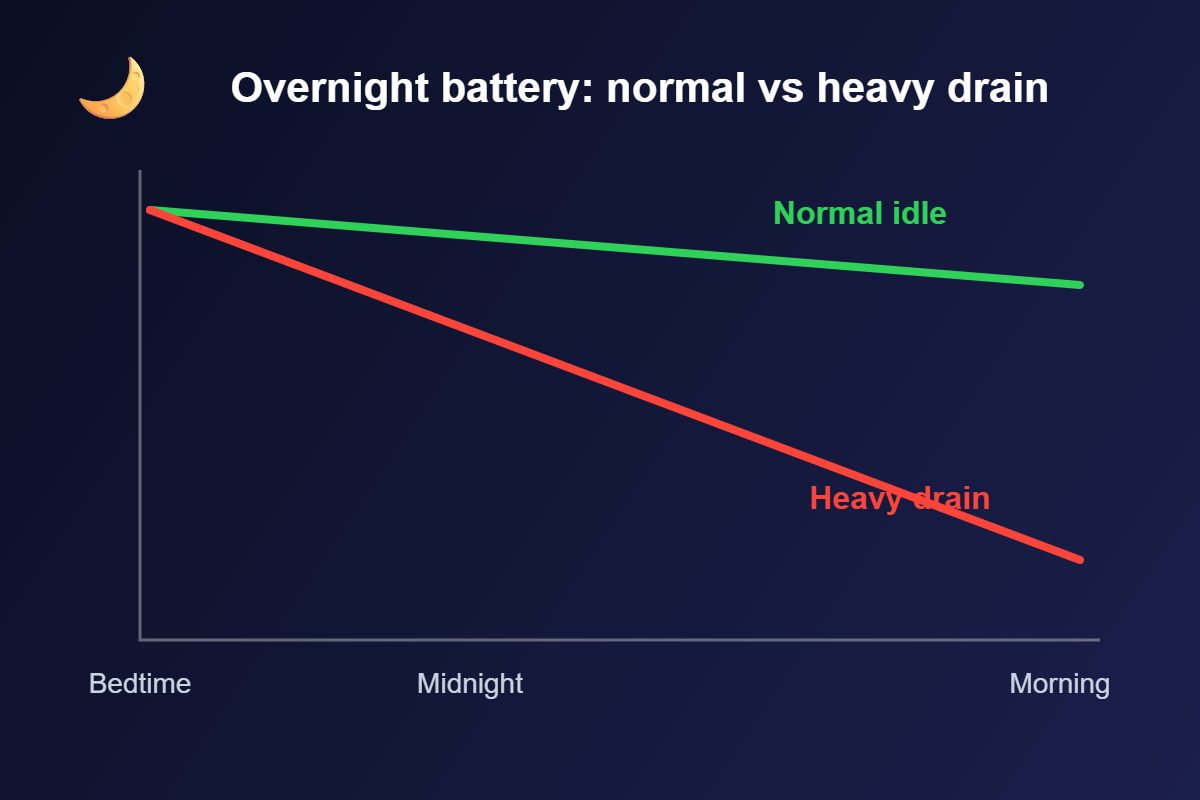
An iPhone 18 Pro battery draining fast overnight is easy to notice because the phone should be mostly idle. Some loss is normal, since the phone still receives messages, syncs data, and runs maintenance tasks. Apple does not publish an overnight figure, but a drop of 20 or 30 percent in a night deserves a closer look.
Common causes include:
- An update or setup task still running. Check the Insights in Settings > Battery.
- Weak signal or a poor Wi-Fi connection near your bed, which makes the radios work harder.
- Apps refreshing or syncing in the background, including cloud photo uploads on a new phone.
- Notifications waking the screen. A Sleep or Do Not Disturb Focus keeps overnight alerts from lighting the display.
- Optimized Battery Charging. Apple says it waits to finish charging past 80 percent until you need it, so a phone that is not at 100 percent when you wake is working as designed.
A simple test. Note your battery level at bedtime, leave the phone unplugged, and check it in the morning. Then open Settings > Battery and tap the overnight hours in the chart to see what ran. If one app dominates, fix that app first.
iPhone 18 Pro Battery Draining After an iOS Update
An iPhone 18 Pro battery draining fast right after an update is often temporary, since a new update can cause a short stretch of higher battery use. Apple explains that even though you can use your device right away after an update, certain tasks continue in the background and can affect battery life and thermal performance. While that work is ongoing, you may see an Ongoing iOS Update Insight at the top of the Battery screen. Apple’s advice is to wait a few days and check again.
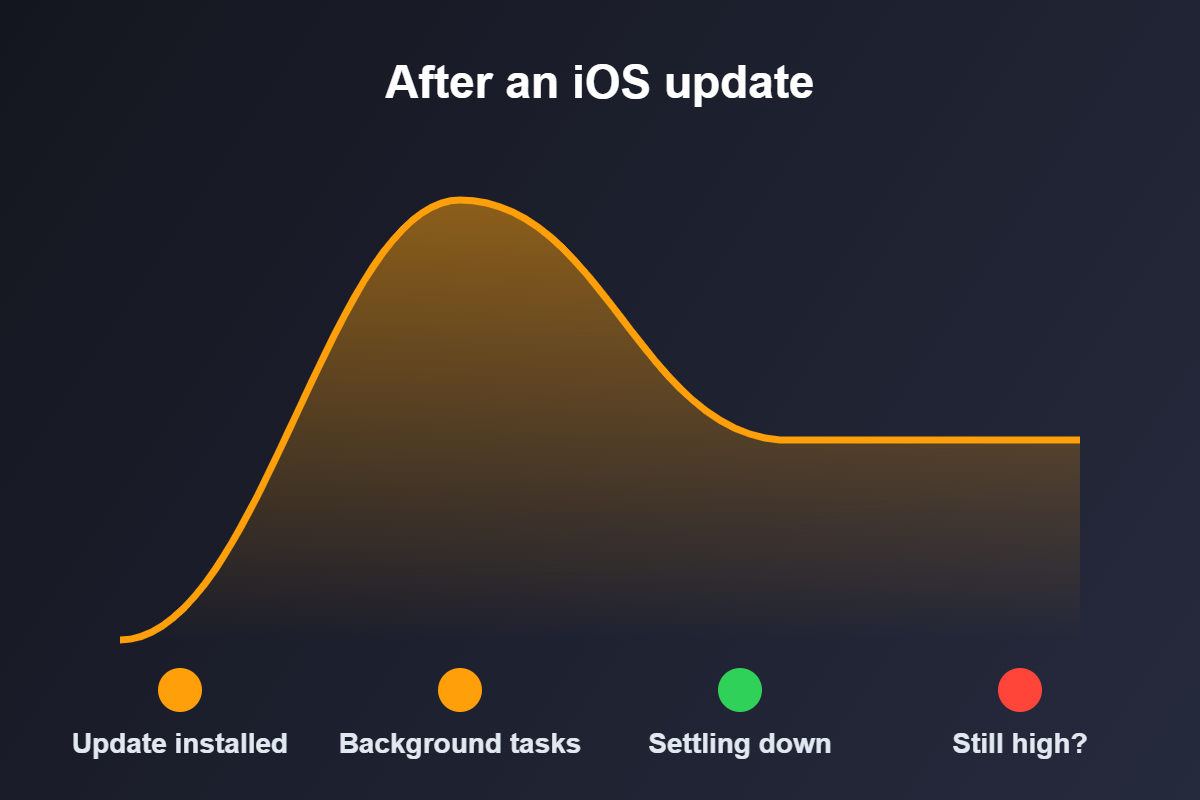
Likely background jobs include re-indexing for search, analyzing photos, and updating apps, plus setup work for new iOS 27 features such as Siri AI. Apple does not list every task, so treat these as likely explanations, not confirmed ones.
When to investigate further. If the drain continues after several days, if the phone feels hot while idle, or if one app dominates the battery chart, start troubleshooting. Update the problem app, restart the phone, review Background App Refresh and Location Services, and read the release notes for known issues. If nothing works, try Reset All Settings and then contact Apple Support.
How to Improve iPhone 18 Pro Battery Life
Fixes solve an iPhone 18 Pro battery draining fast. Habits help prevent it. These daily moves fit most routines and help you avoid an iPhone 18 Pro battery draining fast:
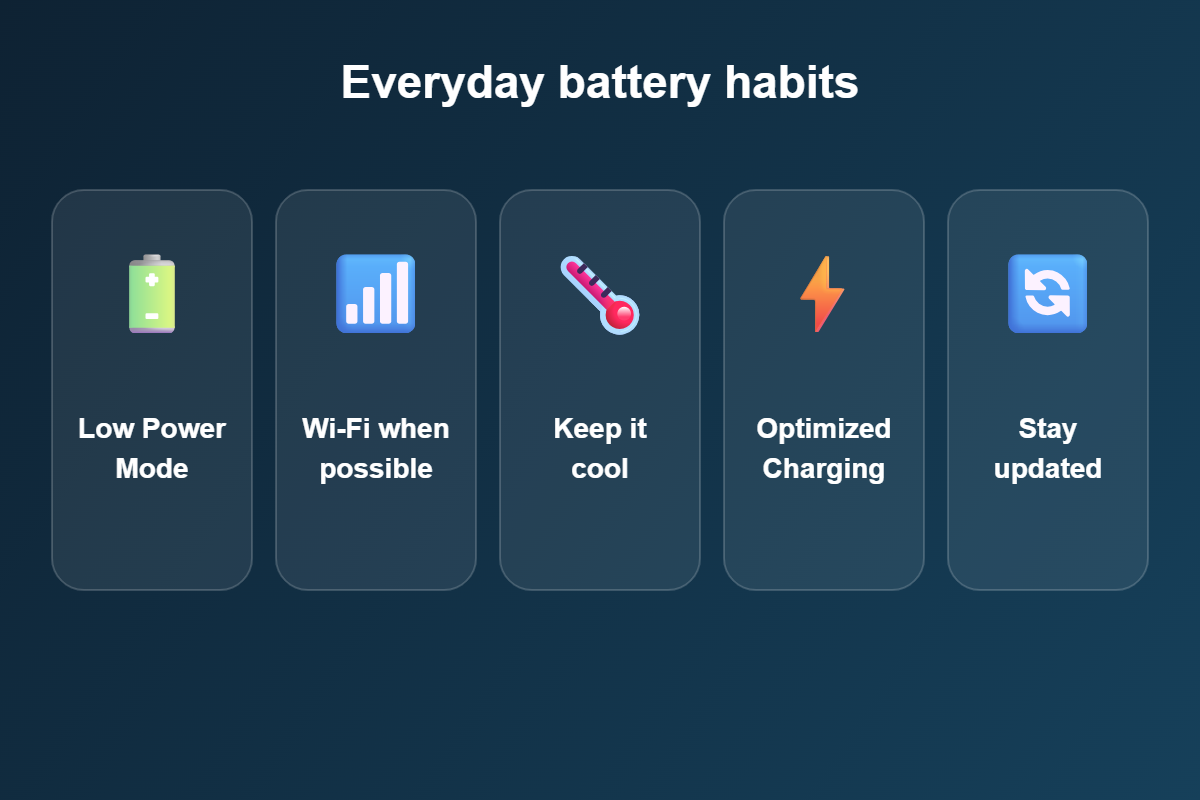
- Use Low Power Mode on long days. Turn it on at Settings > Battery > Power Mode or from Control Center. If Adaptive Power is available on your phone, let it help.
- Prefer Wi-Fi. Apple recommends Wi-Fi when you can use it, because a weak cellular signal makes the phone work harder.
- Keep the phone cool. Apple says iPhone is designed for ambient temperatures between 32 and 95 degrees Fahrenheit. Avoid leaving it in a hot car or in direct sun, and take off a case that traps heat while charging.
- Turn on Optimized Battery Charging. Apple says it learns your routine and waits to finish charging past 80 percent until you need it. Look under Settings > Battery for the charging options.
- Charge sensibly. The iPhone 18 Pro box includes a USB-C cable but no power adapter. Apple’s figure of about 50 percent in roughly 15 minutes requires a 60W-capable adapter that supports Adjustable Voltage Supply. MagSafe and Qi2 wireless charging reach up to 25W.
- Keep iOS and apps updated. Updates carry bug fixes.
Skip closing every app constantly and battery calibration routines. Apple does not document either as a fix.
When Should You Replace Your iPhone Battery?
Lithium-ion batteries age chemically, which can eventually lead to an iPhone 18 Pro battery draining fast. Apple says that over time a battery’s capacity and peak performance decline, and that all rechargeable batteries are consumables. An iPhone 18 Pro that is only months old should be nowhere near that point, but check Battery Health anyway. Apple’s page on iPhone battery and performance explains how aging affects the phone.
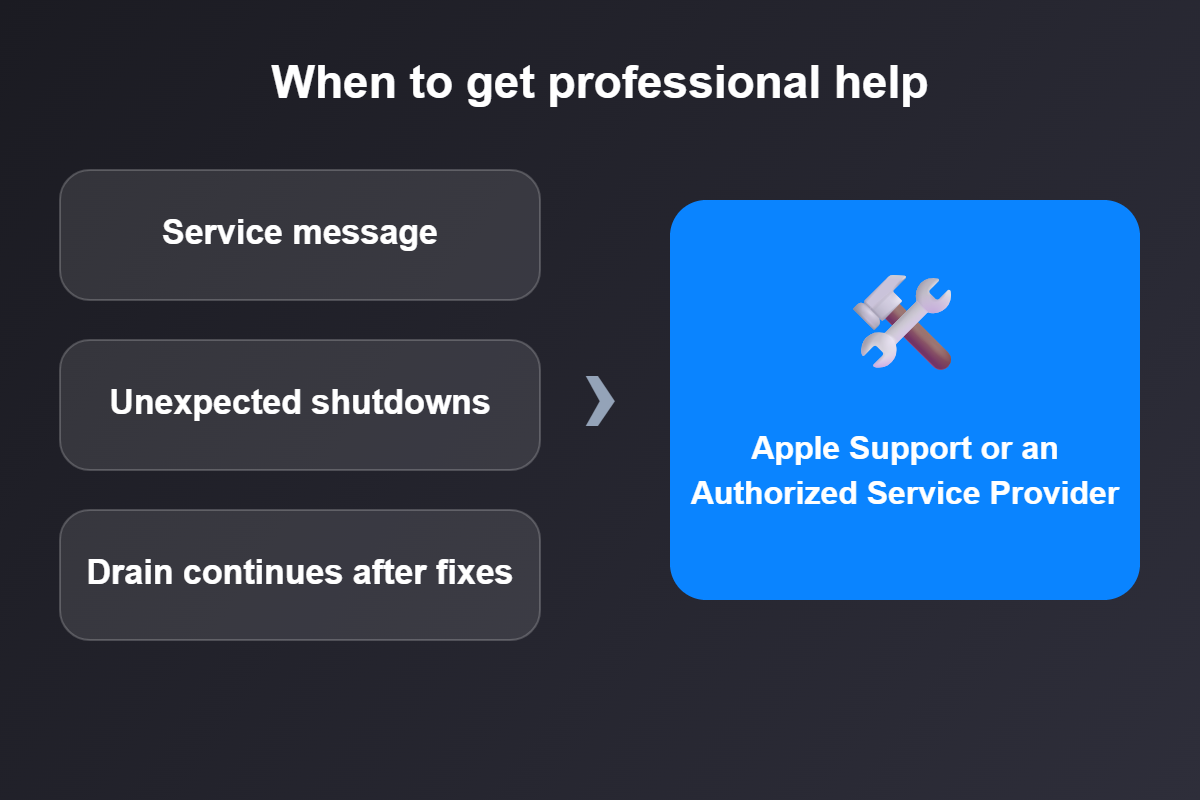
Signs that an iPhone 18 Pro battery draining fast is a battery or hardware problem:
- A Service indicator next to Battery Health. Apple suggests a battery replacement to restore full performance and capacity.
- Unexpected shutdowns. Apple’s performance management is designed to prevent them by limiting peak performance when needed. If shutdowns still happen, get the phone checked.
- Very low maximum capacity, or a phone that cannot get through a normal day even after the fixes above.
- A swollen case or a screen lifting. Stop using the phone and contact Apple right away.
Before you pay for anything, check your warranty or AppleCare coverage. Use Apple or an Apple Authorized Service Provider, and see Apple’s Battery Service and Recycling page for the options. A technician can run diagnostics to separate a battery fault from a software problem.
Frequently Asked Questions
Why is my iPhone 18 Pro battery draining so quickly?
An iPhone 18 Pro battery draining fast usually comes from a mix of causes: a busy background app, weak signal, a bright screen, heat, or setup tasks that are still running after an update. Open Settings > Battery to review the Daily Usage chart and any Insights, then work through the fixes above. If the drain continues after a few days, get a diagnostic from Apple.
Why does my iPhone 18 Pro lose battery overnight?
Some loss is normal, but an iPhone 18 Pro battery draining fast overnight needs a closer look. The phone still syncs data and receives alerts. Large overnight drops often trace back to weak signal, background activity, notifications, an ongoing update, or Always-On Display. Turn on a Sleep Focus and check the overnight hours in the Battery chart.
Does iOS updating cause battery drain?
An iPhone 18 Pro battery draining fast after an update can be temporary. Apple says certain update tasks keep running in the background after you install, and you may see an Ongoing iOS Update Insight. Apple suggests waiting a few days and checking again before you troubleshoot further.
Which apps drain iPhone batteries the most?
It depends on how you use your phone, and the apps behind an iPhone 18 Pro battery draining fast differ for everyone. Social, video, navigation, and gaming apps often rank high, but your own Battery screen shows the real answer. Pay attention to apps with heavy background activity or constant notifications, not just long screen time.
Should I turn off Background App Refresh?
Not entirely, for most people, even with an iPhone 18 Pro battery draining fast. Turning it off for apps that do not need fresh content can help, but those apps may load more slowly or show older information when you open them. Choose app by app under Settings > General > Background App Refresh.
Does Always-On Display affect battery life?
It keeps the screen active while the phone is locked, so it may add to an iPhone 18 Pro battery draining fast problem, but Apple does not publish a figure for it. Turn it off under Settings > Display & Brightness > Always On Display for a few days and compare your results.
How can I check my iPhone battery health?
Go to Settings > Battery > Battery Health. It is the first place to look when an iPhone 18 Pro battery draining fast worries you. On iPhone 15 and later you will see the battery maximum capacity, its peak performance capability, and whether Apple recommends service.
When should I contact Apple Support?
Reach out about an iPhone 18 Pro battery draining fast if Battery Health shows a Service message, the phone shuts down unexpectedly, it runs hot while idle, or the battery still drains quickly after you have tried the steps in this guide. If the phone looks swollen or the screen lifts, stop using it and contact Apple right away.
Final Thoughts
An iPhone 18 Pro battery draining fast is usually fixable, and the answer is often in the Battery screen. Start at Settings > Battery, find the app or activity behind your iPhone 18 Pro battery draining fast, and then work through the biggest levers: background refresh, location, screen settings, signal, and a few days of patience after an update.
If your iPhone 18 Pro battery draining fast problem continues, check Battery Health and contact Apple. No tip here is guaranteed to fix every phone, and persistent drain can need a professional diagnosis. Check your battery again in a week, and you will know whether your changes worked.